Scheduling
Let customers book while you work.
Customers pick an open time from your booking link and move or cancel on their own, with no account to make and no phone tag. Anyone who leaves an email gets a confirmation right away, and each time can only be booked once.
Four things it does, in order.
From the hours you set to the day of the appointment.
Set up
Choose your days and hours, how long each appointment runs and how much notice you need. Block out holidays and days off. If you like, have online bookings wait for your OK before they're confirmed.
Share
Send your booking link, or paste two lines to put your booking form on your own website. Take bookings on a Google Form? Scheduling writes the code you add to the form once, and its answers turn into bookings.
Book
Customers pick a time and leave their name and an email or phone number. An email address gets them an instant confirmation, with a link to move or cancel. With only a number, you text the confirmation from your own phone.
Keep track
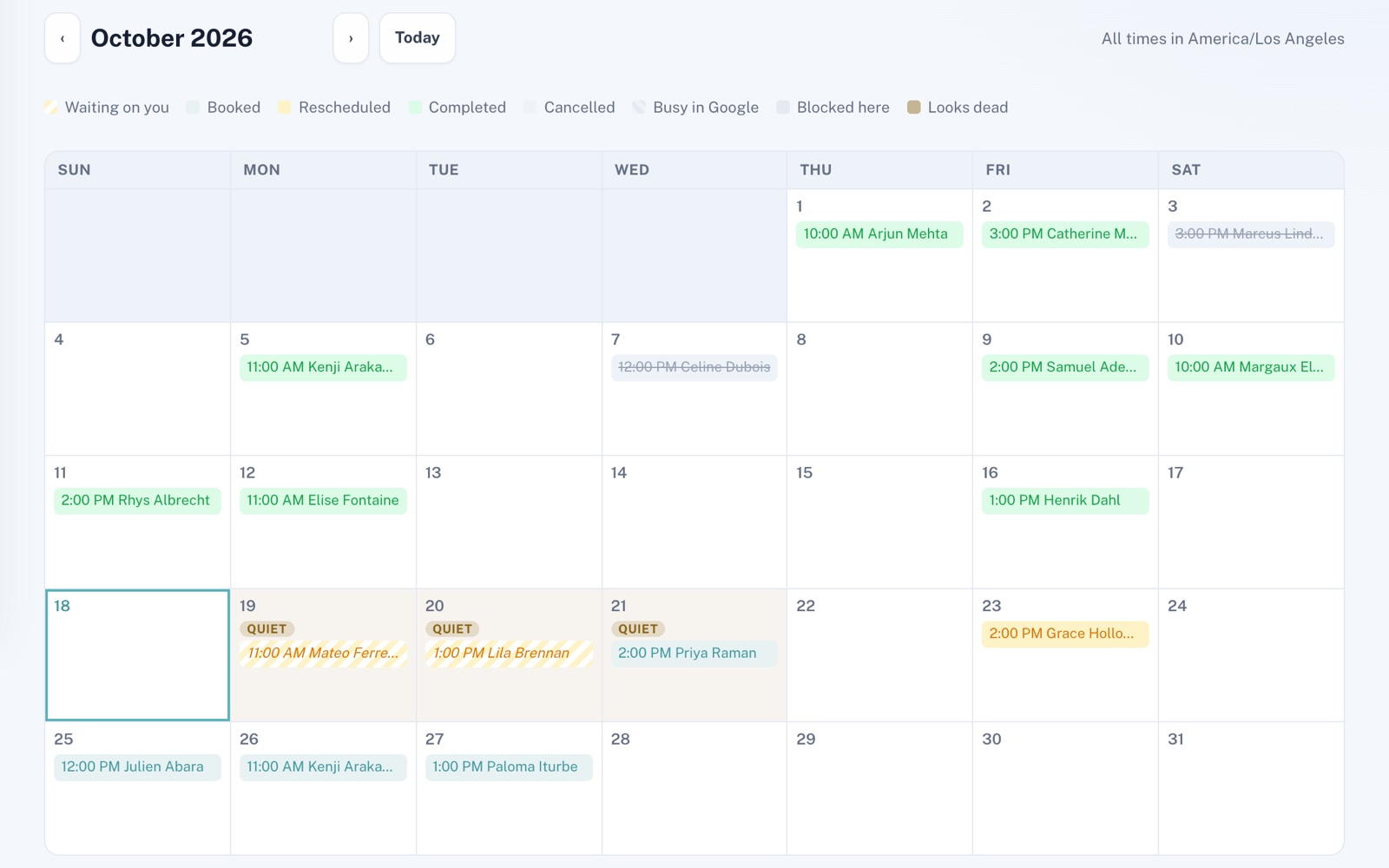
Every booking lands in your list and on a month calendar that points out quiet days. Book by hand, reschedule or mark visits done. A reminder goes out the day before each appointment, by email, or by text from your own Twilio number if you connect one. Add one link and your bookings show up in your Apple, Google or Outlook calendar.
For example
Three businesses, three questions.
The kind of thing Scheduling is built to answer.
-
The mobile mechanic
Will bookings I take by phone clash with online ones?
Add them by hand. They go on the same calendar as your online bookings, and that time comes off your booking page.
-
The tree service
Can I look at a request before I commit to the time?
Have online bookings wait for your OK. The time stays held while you decide, and the customer hears your answer by email or by a text from your own phone.
-
The massage therapist
Can clients move their own appointment without texting me?
Their confirmation and the thank-you page both carry a link to move or cancel. They pick another open time themselves, and the new time shows on your calendar.
Illustrations of how Scheduling is used, not customer stories.
Their side
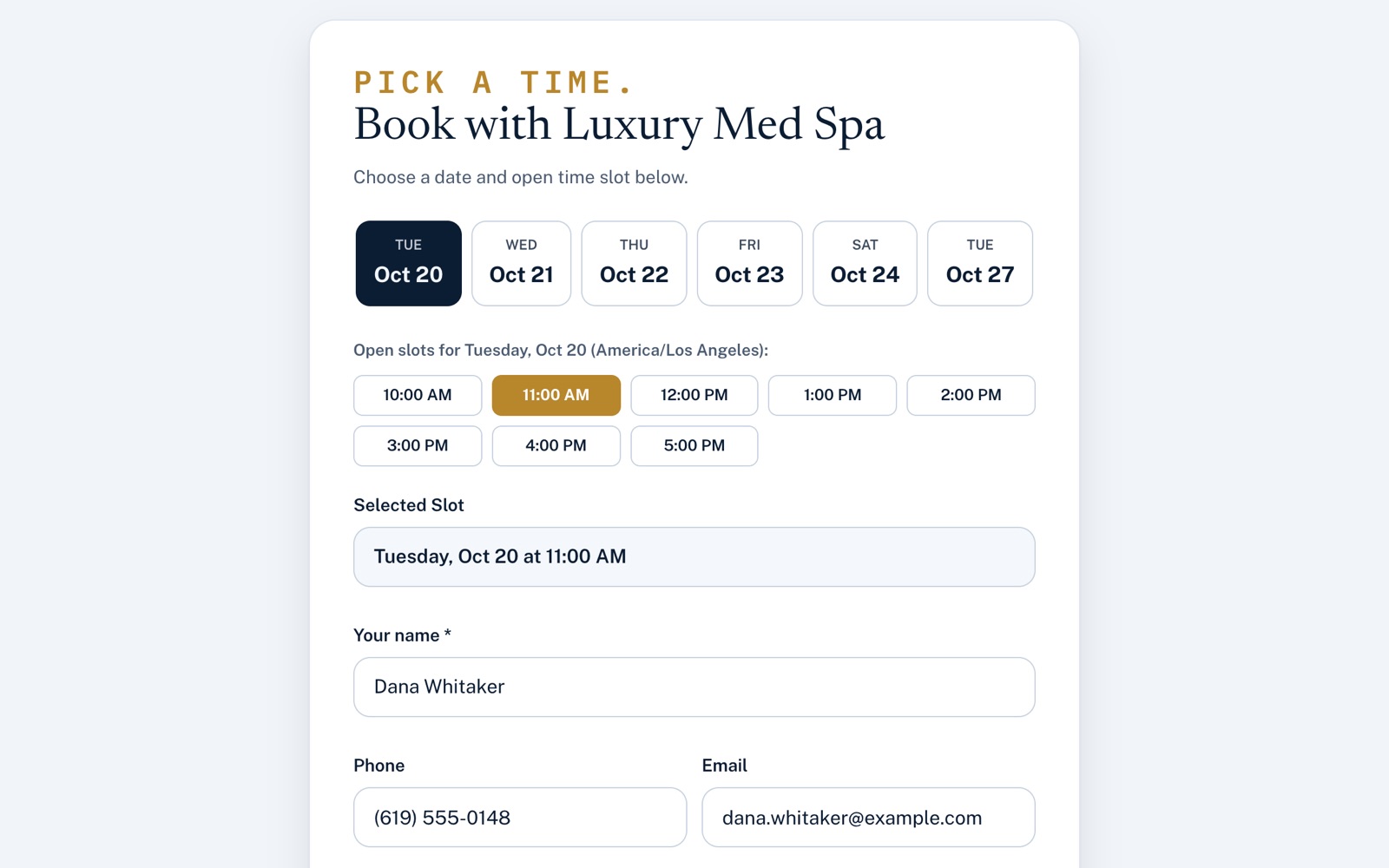
A booking page anyone can use.
Customers see the next three weeks of open times in your time zone, pick one and leave their details. The thank-you page has buttons to add the appointment to Google, Outlook or Apple Calendar, and a link to move or cancel.
Your side
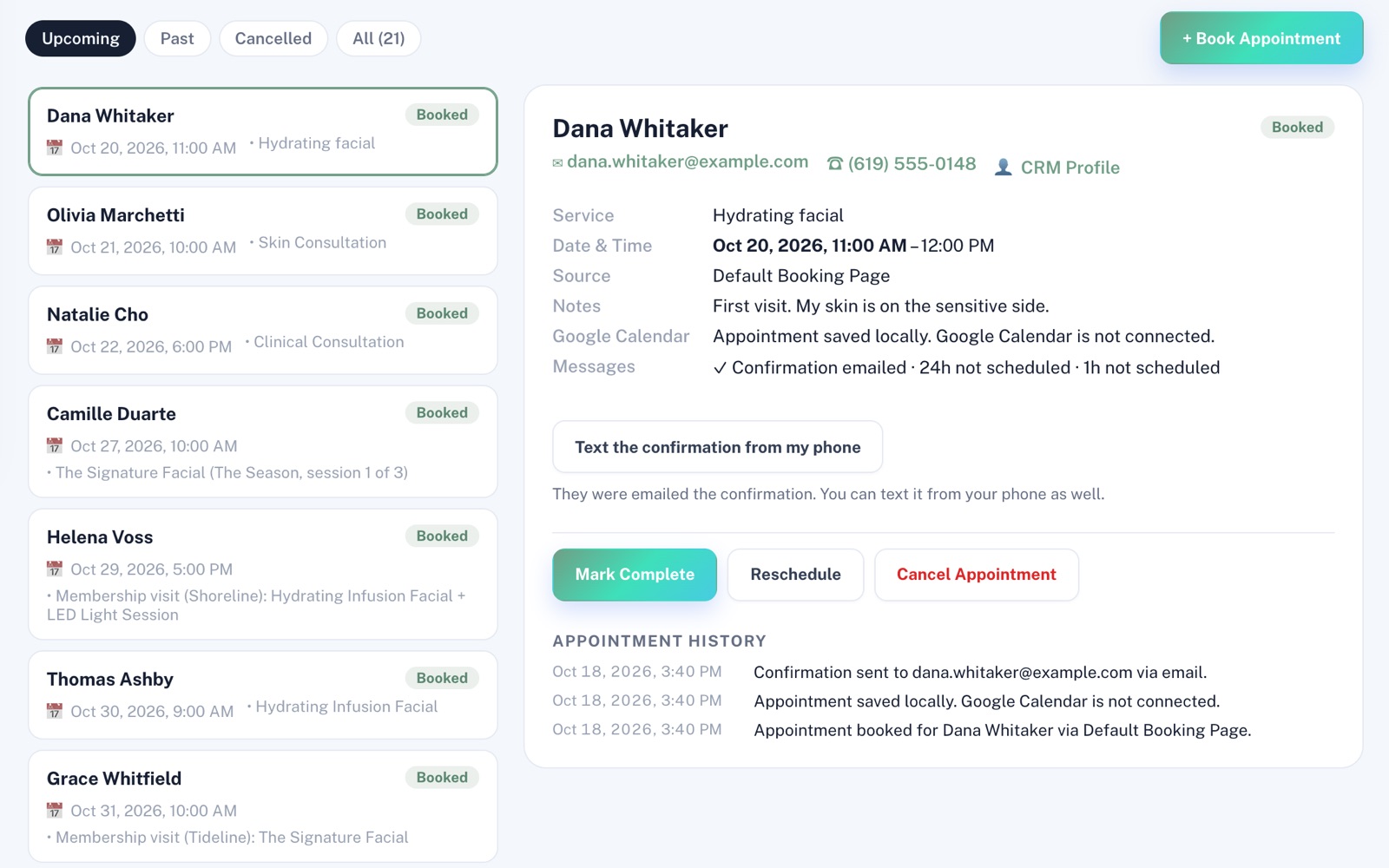
Every booking, and which messages went out.
Open any appointment to see who it's for, when, where it came from and whether their confirmation went out. Reschedule, cancel or mark it done, and every change stays in its history.
Screens shown with sample data.
Works well with
Better together.
Scheduling does more alongside these.
- Website Machine A site you publish with it gets its own booking page, with nothing to paste. Take a look
- CRM Everyone who books is added to your customer list, or matched to the record you already have. Take a look
- Review Automation Turn review requests on, and marking an appointment done lines up a thank-you, then a review request, each emailed in one press once it's due. Take a look
Coming to Scheduling
Two-way Google Calendar sync, once the platform has it switched on.
Open an account
Start taking bookings today.
Create your account, set your hours, and your booking link is ready to share.