Review Automation
Stop forgetting to ask for reviews.
When the work is done, customers whose email you have are lined up for a thank-you, a review request with your review link, and one reminder. Press 'Send what's due now' once a day, during your sending hours, and whatever's ready goes out.
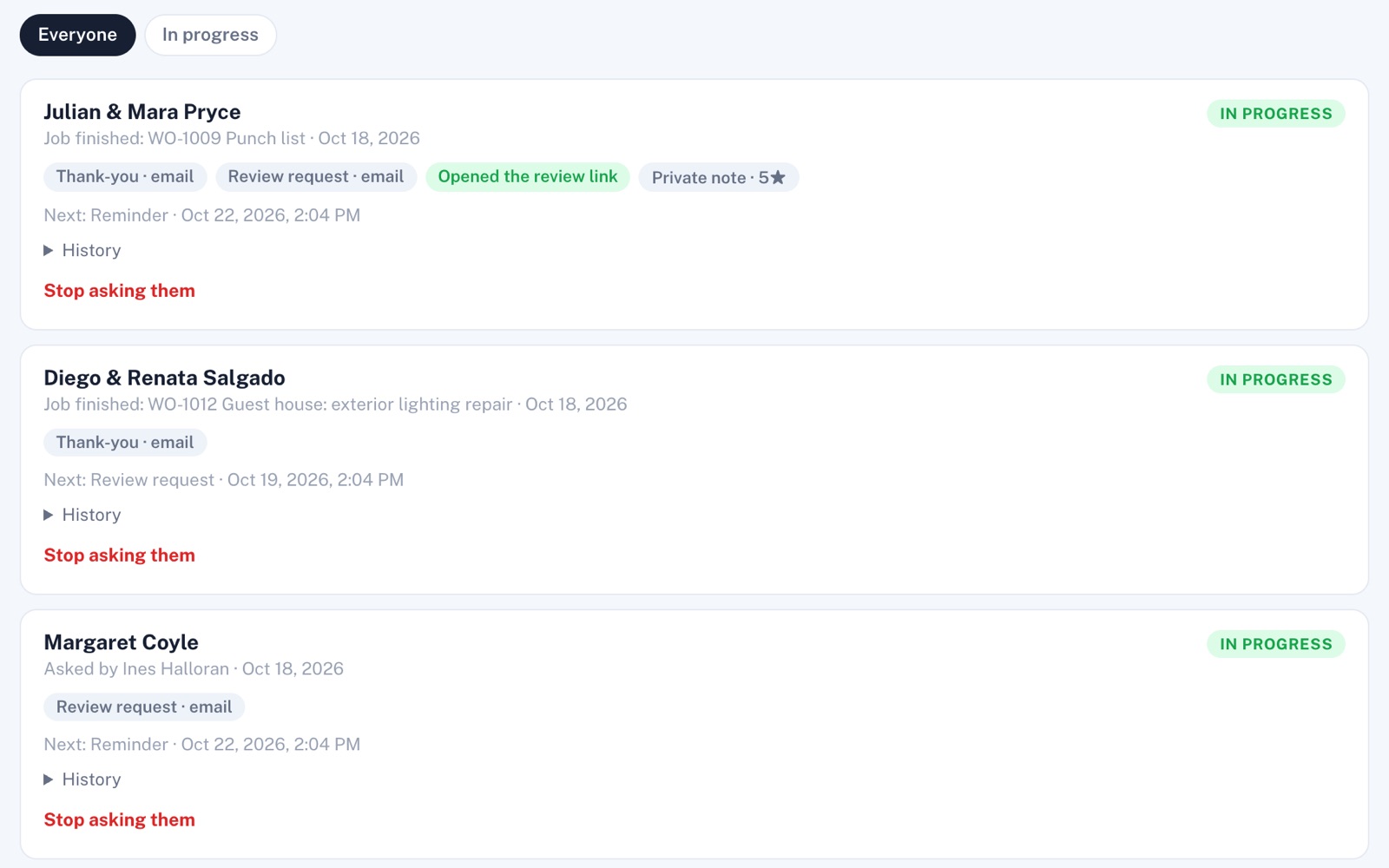
Four things it does, in order.
From the finished job to the review link your customer opens.
Line up
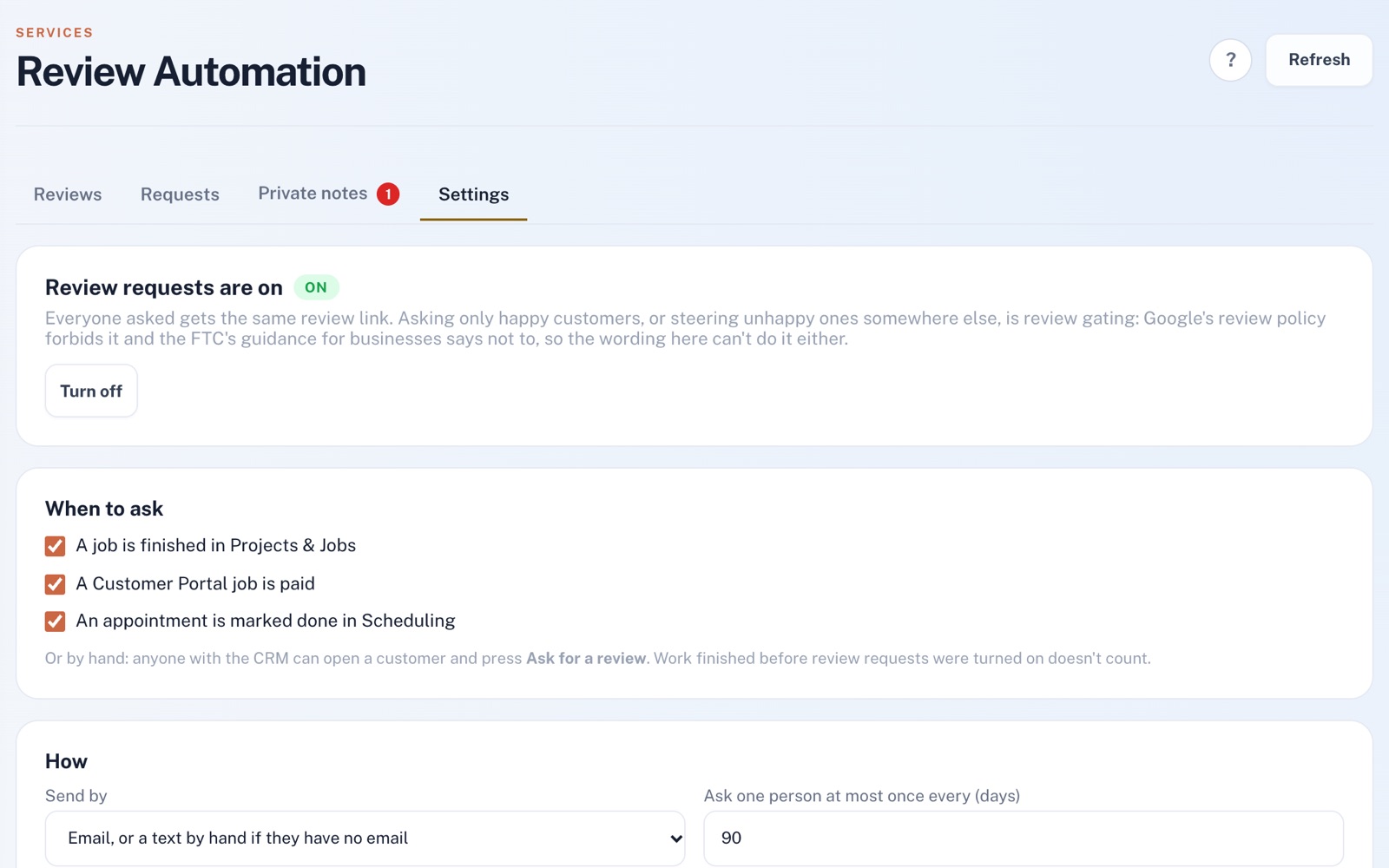
Mark a work order complete in Projects & Jobs for someone picked from your customer list, mark an appointment complete in Scheduling, or record full payment on a Customer Portal job. Your next press within a week lines them up.
Ask
A thank-you, then a review request, then one reminder, each emailed with your next press once it's due, inside your sending hours. You can rewrite each one and change how long it waits.
Track
Each request shows what went out and whether they opened your review link. When the reminder comes due, anyone who already opened it is skipped, and nobody is asked more than once every 90 days unless you change that.
Listen
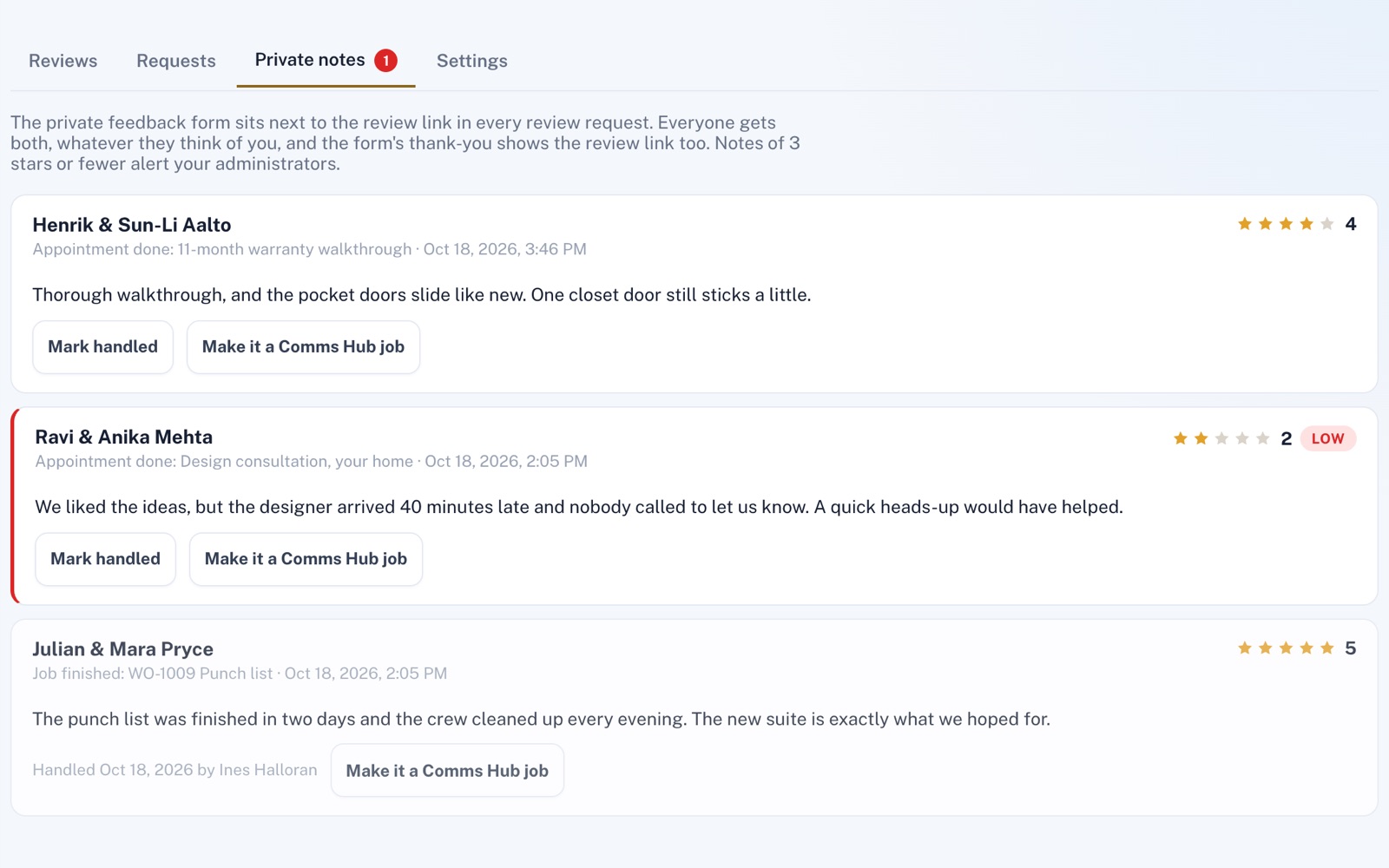
Switch on private notes and customers can leave stars and a few words beside your review link, never instead of it. Notes of three stars or fewer alert you by email right away, and you can change that number.
For example
Three businesses, three questions.
The kind of thing Review Automation is built to answer.
-
The carpet cleaning company
How do I remember to ask for a review after every job?
Mark the work order complete for someone with an email, picked from your customer list. Your daily press, during your sending hours, then sends their thank-you, review request and reminder as each comes due.
-
The nail salon
Will my regulars get asked after every visit?
No. Marking an appointment complete lines a client up, but nobody is asked more than once every 90 days unless you change that.
-
The small engine repair shop
Can I ask the customer picking up their mower today?
Type their name and email in the Ask a customer form. It skips the thank-you, so the review request goes with your next press during your sending hours, followed by one reminder.
Illustrations of how Review Automation is used, not customer stories.
No cherry-picking
The same link for everyone.
Everyone you ask is sent to the same review page. Wording like 'Happy with our work? Leave a review' won't save, because it asks only happy customers. Google's review policy forbids that, and the FTC's guidance for businesses says not to.
Private notes
Follow up on every low note.
Once private notes are on, each note lands on the Private notes tab with its stars and words, and low ones are labeled Low. Mark each one handled, or with the Comms Hub, make it a job for someone to follow up.
Screens shown with sample data.
Works well with
Better together.
Review Automation does more alongside these.
- CRM Ask for a review from a customer's page: by email, or as a text from your own phone when they have no email. Take a look
- Projects & Jobs Mark a work order complete for someone picked from your customer list, and your next press lines them up for a review request. Take a look
- Scheduling Mark an appointment complete, and your next press lines that customer up for a review request. Take a look
Coming to Review Automation
Your Google and Yelp ratings and a few of your reviews on the Reviews tab, once the platform has them switched on. Replies to those Google reviews drafted with the AI Content Assistant, once the platform's AI is switched on too.
Open an account
Send your first review request today.
Create your account, add your Google review link and business mailing address, and switch review requests on.