AI Content Assistant
Write and approve your posts in one place.
You or your team write social posts, Google posts, newsletters, texts and review replies here. Each one shows when it runs over its limit and whether it still needs your OK, and copies in one press.
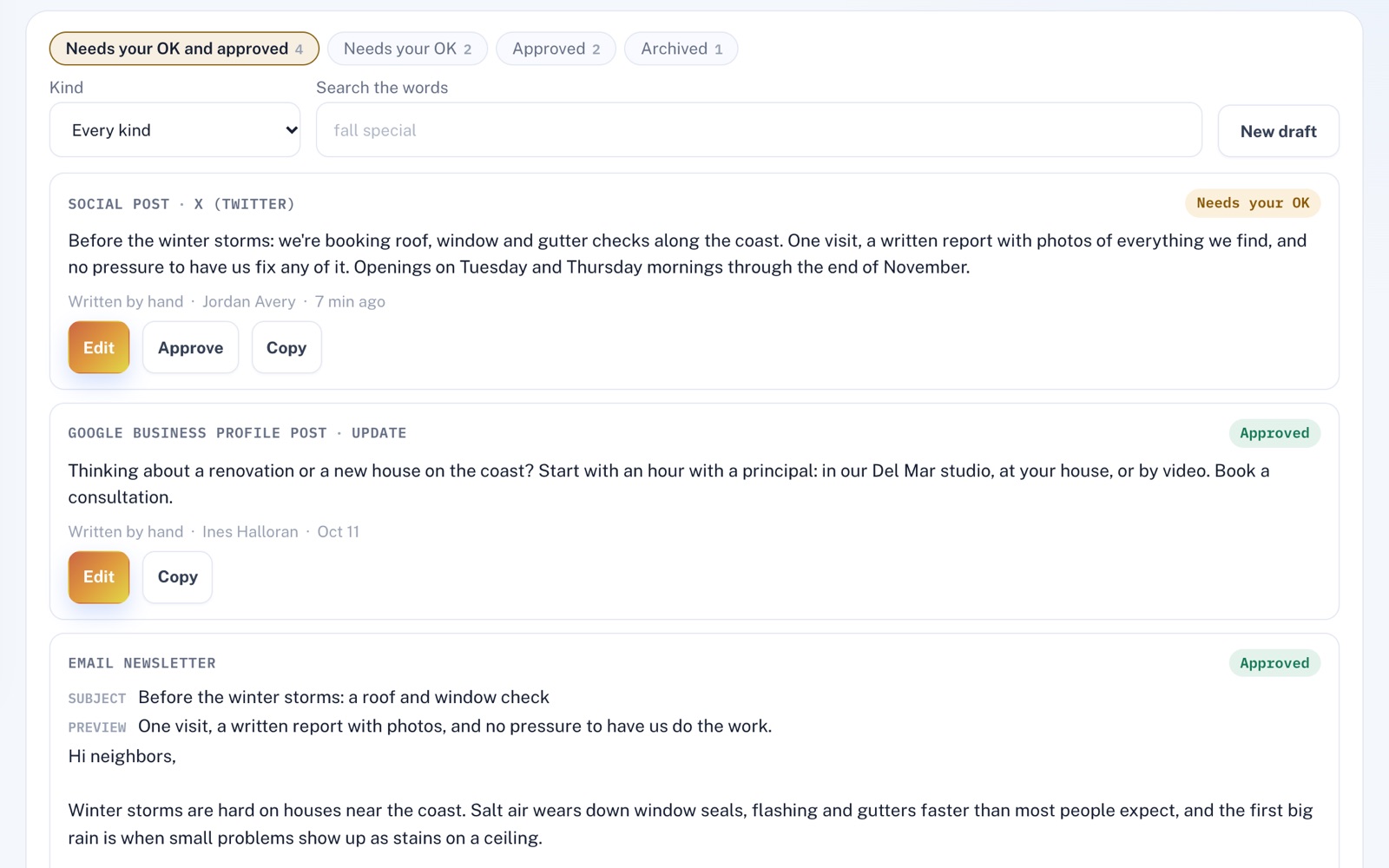
Four things it does, in order.
From a blank draft to words ready to paste.
Write
Start a new draft and pick what you're writing: a social or Google Business Profile post, a newsletter, a text message, a review reply, a web page or what a quote or job covers. It starts blank, with the right boxes.
Check
Each box shows a running count against its limit, and a social post's limit changes with the network you pick: 280 characters for X, 2,200 for Instagram. Forget to fill in a blank like [Name] in the text and it's flagged.
Approve
A draft saved for later waits as Needs your OK until someone on your team approves it, then shows who did. Change an approved draft's words and it needs a new OK. Up to ten earlier versions are kept to bring back.
Copy
One press copies the words, with the subject line on top for an email. Have the CRM too? An approved newsletter can go there as a campaign draft that waits for an administrator to send it.
For example
Three businesses, three questions.
The kind of thing AI Content Assistant is built to answer.
-
The gutter cleaning company
Can my office manager write posts for me to check first?
They write the post and press Save for later. It waits in the library as Needs your OK, with their name on it, until you or someone on your team approves it.
-
The sprinkler repair company
Will my spring special fit in one text?
Start it as a text message and the editor shows how many texts long it is as you type, so you can trim it to one before you copy it.
-
The chimney sweep
Can I reuse last fall's newsletter?
Search the library for a word you remember, open the newsletter and change the dates. The old wording is kept as an earlier version you can bring back.
Illustrations of how AI Content Assistant is used, not customer stories.
Counted as you type
Know it fits before you paste.
Pick where a post is going and the counter follows its limit. The editor flags a blank left to fill in and won't save a draft that runs over.
![An X (Twitter) post open in the editor, counted at 264 of 280 characters, with a "[date]" blank flagged and Save and approve, Save for later, Copy, Archive and Delete buttons.](/img/services/ai-content-assistant-1.jpg)
With the CRM
Pick who gets your newsletter.
See how many people it reaches, whether that's everyone in the CRM or just leads, customers, past customers or a saved segment. Then make it a campaign draft: nothing is sent until an administrator presses Send now in the CRM.
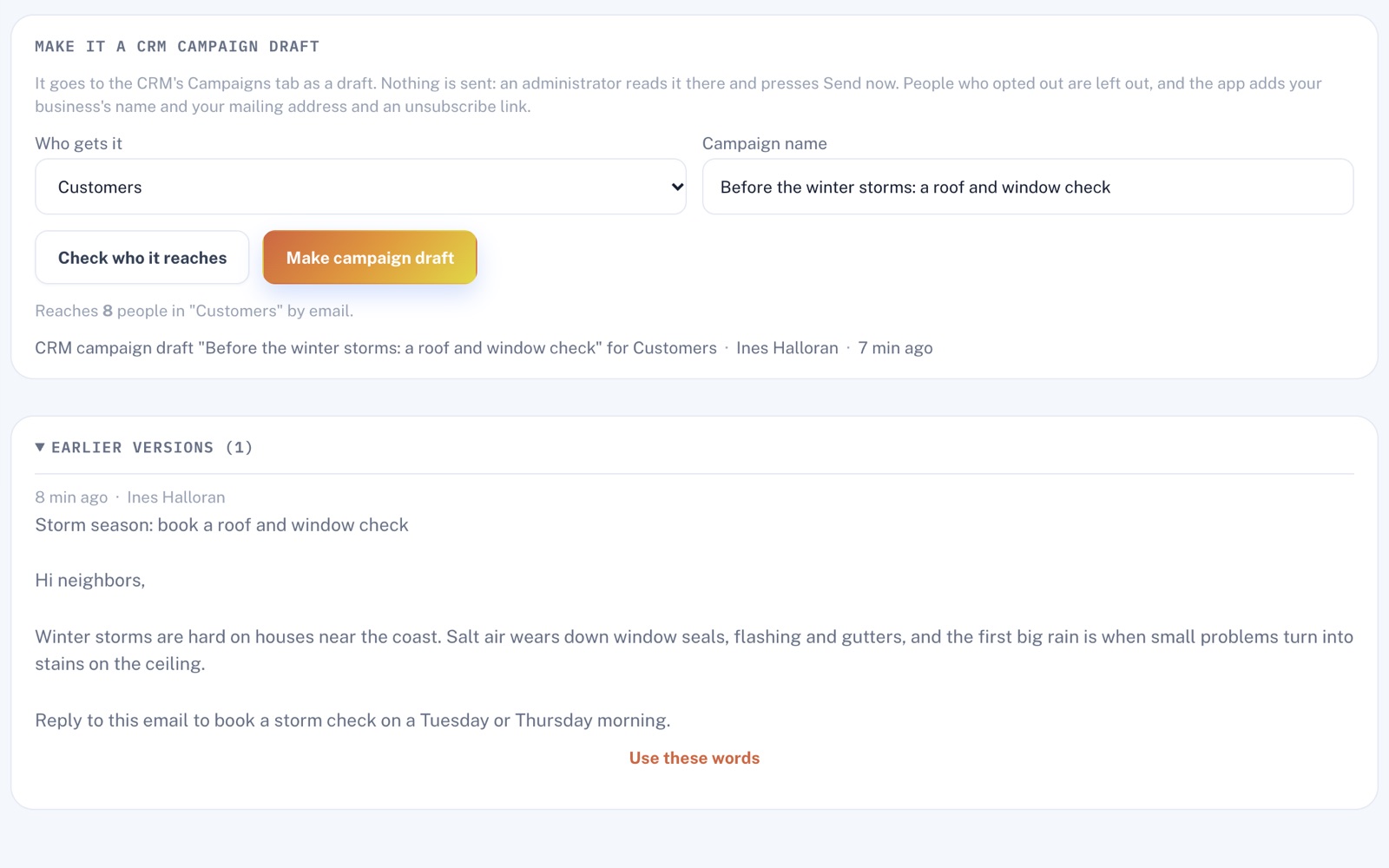
Screens shown with sample data.
Works well with
Better together.
AI Content Assistant does more alongside these.
- CRM Your customer list lives there: send an approved newsletter to the group you pick, from its Campaigns tab. Take a look
- Marketing Automation For the emails that repeat: set up welcome and come-back notes once, then send what's due in one press. Take a look
- SEO & AEO See what's holding your website back on Google, then write the words for its pages here. Take a look
Coming to AI Content Assistant
Drafts in your own voice from a few notes, a new version of a draft when you say what should change, and a reply drafted for a review you paste in from any site but Yelp, once the platform's AI is switched on. Approved drafts posted to your Facebook Page, Instagram or Google Business Profile when an administrator presses Post, once the platform has posting switched on.
Open an account
Write your next post today.
Create your account and your first draft can be written, approved and ready to copy in minutes.